


jsplumb 中文教程
https://wdd.js.org/jsplumb-chinese-tutorial/#/
后续更新会在仓库:https://github.com/wangduanduan/jsplumb-chinese-tutorial.git
本文的图片是托管于七牛云的,由于使用的是测试域名,可能不知道哪天,图片就无法显示了。不过每个例子都有简单的在线demo, demo剩千图,还是能看懂的。
你有没有想过在你的网站上展示图表或者甚至在浏览器应用程序中使用它?用jsPlumb你可以!它是完全免费的,并根据MIT许可证提供。您可以直接从jsPlumb github网站下载框架。
该项目主要由Simon Porritt开发,他在澳大利亚西德尼担任网络开发人员。 jsPlumb由他积极开发。作为许多优秀的开发人员,他似乎更喜欢开发代码而不是编写教程,这就是为什么我提供一个简单的入门教程。
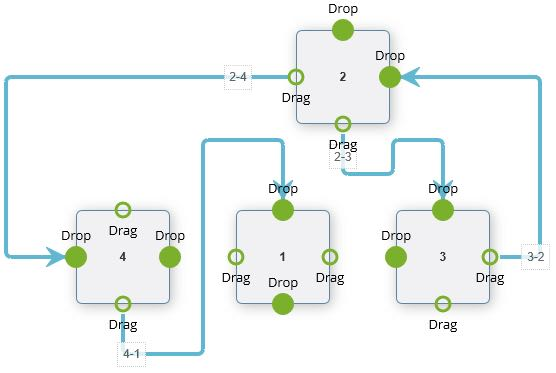
那么如果你应该使用它取决于你想用jsPlumb做什么。该框架适用于必须绘制图表的Web应用程序,例如类似于Visio的应用程序或工作流程设计器等。由于图表项目和连接的所有参数都是非常精细可控的,因此您可以绘制您可以想到的任何类型的图表的!
Souce 源节点
Target 目标节点
Anchor 锚点
Endpoint 端点
Connector 连接

demo: https://wdd.js.org/jsplumb-chinese-tutorial/demos/01.html
jsPlumb.ready方法和jquery的ready方法差不多的功能,jsPlumb.connect用于建立连线

<div id="diagramContainer">
	<div id="item_left" class="item"></div>
	<div id="item_right" class="item" style="margin-left:50px;"></div>
</div>
<script src="https://cdn.bootcss.com/jsPlumb/2.6.8/js/jsplumb.min.js"></script>
<script>
	/* global jsPlumb */
	jsPlumb.ready(function () {
		jsPlumb.connect({
			source: 'item_left',
			target: 'item_right',
			endpoint: 'Dot'
		})
	})
</script>
参数说明: jsPlumb.connect(config) return connection
| 参数 | 参数类型 | 是否必须 | 说明 |
|---|---|---|---|
| source | String,Object,Endpoint | 是 | 连线源的标识,可以是id, element, 或者Endpoint |
| target | String,Object,Endpoint | 是 | 连线目标的标识,可以是id, element, 或者Endpoint |
| endpoint | String | 可选 | 端点类型,形状 |
demo: https://wdd.js.org/jsplumb-chinese-tutorial/demos/02.html
使用draggable可以让节点被拖动,draggable方法参考

<div id="diagramContainer">
	<div id="item_left" class="item"></div>
	<div id="item_right" class="item" style="left:150px;"></div>
</div>
<script src="https://cdn.bootcss.com/jsPlumb/2.6.8/js/jsplumb.min.js"></script>
<script>
	/* global jsPlumb */
	jsPlumb.ready(function () {
		jsPlumb.connect({
			source: 'item_left',
			target: 'item_right',
			endpoint: 'Rectangle'
		})


		jsPlumb.draggable('item_left')
		jsPlumb.draggable('item_right')
	})
</script>
demo: https://wdd.js.org/jsplumb-chinese-tutorial/demos/03.html
可以通过connector去设置链接线的形状,如直线或者曲线之类的。anchor可以去设置锚点的位置。
jsplumb连线的样式有四种
Bezier: 贝塞尔曲线
Flowchart: 具有90度转折点的流程线
StateMachine: 状态机
Straight: 直线

<div id="diagramContainer">
	<div id="item_left" class="item"></div>
	<div id="item_right" class="item" style="left:150px;"></div>
</div>
<script src="https://cdn.bootcss.com/jsPlumb/2.6.8/js/jsplumb.min.js"></script>
<script>
	/* global jsPlumb */
	jsPlumb.ready(function () {
		jsPlumb.connect({
			source: 'item_left',
			target: 'item_right',
			endpoint: 'Rectangle',
			connector: ['Bezier'],
			anchor: ['Left', 'Right']
		})


		jsPlumb.draggable('item_left')
		jsPlumb.draggable('item_right')
	})
</script>
demo: https://wdd.js.org/jsplumb-chinese-tutorial/demos/04.html
很多连线都是相同设置的情况下,可以将配置抽离出来,作为一个单独的变量,作为connect的第二个参数传入。实际上connect的第二个参数会和第一个参数merge,作为一个整体。
<script>
/* global jsPlumb */
jsPlumb.ready(function () {
var common = {
endpoint: 'Rectangle',
connector: ['Bezier'],
anchor: ['Left', 'Right']
}
jsPlumb.connect({
source: 'item_left',
target: 'item_right'
}, common)
jsPlumb.draggable('item_left')
jsPlumb.draggable('item_right')
})
</script>
demo: https://wdd.js.org/jsplumb-chinese-tutorial/demos/05.html
例如给连线设置不同的颜色,设置不同的粗细之类的。

jsPlumb.connect({
  source: 'item_left',
  target: 'item_right',
  paintStyle: { stroke: 'lightgray', strokeWidth: 3 },
  endpointStyle: { fill: 'lightgray', outlineStroke: 'darkgray', outlineWidth: 2 }
}, common)
demo: https://wdd.js.org/jsplumb-chinese-tutorial/demos/06.html
箭头实际上是通过设置overlays去设置的,可以设置箭头的长宽以及箭头的位置,location 0.5表示箭头位于中间,location 1表示箭头设置在连线末端。 一根连线是可以添加多个箭头的。
overlays也是一个比较重要的概念,overlays可以理解为遮罩层。遮罩层不仅仅可以设置箭头,也可以设置其他内容。
overlays有五种类型,下面给出简介。具体使用方法参见 https://jsplumbtoolkit.com/community/doc/overlays.html
Arrow 一个可配置的箭头
Label 标签,可以在链接上显示文字信息
PlainArrow 原始类型的箭头
Diamond 菱形箭头
Custom 自定义类型

jsPlumb.connect({
  source: 'item_left',
  target: 'item_right',
  paintStyle: { stroke: 'lightgray', strokeWidth: 3 },
  endpointStyle: { fill: 'lightgray', outlineStroke: 'darkgray', outlineWidth: 2 },
  overlays: [ ['Arrow', { width: 12, length: 12, location: 0.5 }] ]
}, common)
demo: https://wdd.js.org/jsplumb-chinese-tutorial/demos/07.html
addEndpoint方法可以用来增加端点,具体使用请看

jsPlumb.ready(function () {
	jsPlumb.addEndpoint('item_left', {
		anchors: ['Right']
	})
})
demo: https://wdd.js.org/jsplumb-chinese-tutorial/demos/08.html
如果你将isSource和isTarget设置成true,那么久可以用户在拖动时,自动创建链接。

jsPlumb.ready(function () {
jsPlumb.setContainer('diagramContainer')
var common = {
isSource: true,
isTarget: true,
connector: ['Straight']
}
jsPlumb.addEndpoint('item_left', {
anchors: ['Right']
}, common)
jsPlumb.addEndpoint('item_right', {
anchor: 'Left'
}, common)
jsPlumb.addEndpoint('item_right', {
anchor: 'Right'
}, common)
})
一般来说拖动创建的链接,可以再次拖动,让链接断开。如果不想触发这种行为,可以设置。
jsPlumb.importDefaults({
	ConnectionsDetachable: false
})
demo: https://wdd.js.org/jsplumb-chinese-tutorial/demos/09.html
通过设置各种 *Style来改变链接或者端点的样式。

jsPlumb.ready(function () {
	jsPlumb.setContainer('diagramContainer')


	var common = {
		isSource: true,
		isTarget: true,
		connector: 'Straight',
		endpoint: 'Dot',
		paintStyle: {
			fill: 'white',
			outlineStroke: 'blue',
			strokeWidth: 3
		},
		hoverPaintStyle: {
			outlineStroke: 'lightblue'
		},
		connectorStyle: {
			outlineStroke: 'green',
			strokeWidth: 1
		},
		connectorHoverStyle: {
			strokeWidth: 2
		}
	}


	jsPlumb.addEndpoint('item_left', {
		anchors: ['Right']
	}, common)


	jsPlumb.addEndpoint('item_right', {
		anchor: 'Left'
	}, common)


	jsPlumb.addEndpoint('item_right', {
		anchor: 'Right'
	}, common)
})
demo: https://wdd.js.org/jsplumb-chinese-tutorial/demos/10.html
jsplumb实际上不支持改变节点大小,实际上只能通过jquery ui resizable 方法去改变。

<div id="diagramContainer">
	<div id="item_left" class="item"></div>
	<div id="item_right" class="item" style="left:150px;"></div>
</div>
<script src="https://code.jquery.com/jquery-1.11.3.js"></script>
<script src="https://code.jquery.com/ui/1.12.1/jquery-ui.js"></script>
<script src="./lib/jquery.jsplumb.js"></script>


<script>
	/* global jsPlumb, $ */
	$('.item').resizable({
		resize: function (event, ui) {
			jsPlumb.repaint(ui.helper)
		}
	})


	jsPlumb.ready(function () {
		jsPlumb.connect({
			source: 'item_left',
			target: 'item_right',
			endpoint: 'Rectangle'
		})


		jsPlumb.draggable('item_left')
		jsPlumb.draggable('item_right')
	})
</script>
demo: https://wdd.js.org/jsplumb-chinese-tutorial/demos/11.html
默认情况下,节点可以被拖动到区域外边,如果想只能在区域内拖动,需要设置containment,这样节点只能在固定区域内移动。

jsPlumb.draggable('item_left', {containment: 'parent'})
jsPlumb.draggable('item_right', {containment: 'parent'})
jsPlumb.draggable('some-id', {containment: "#containment-wrapper"})
demo: https://wdd.js.org/jsplumb-chinese-tutorial/demos/12.html 网格对齐实际上是设置了grid属性,使移动只能按照固定的尺寸移动。然后用一张图作为背景铺开作为网格来实现的。

#diagramContainer {
  padding: 20px;
  width: 80%;
  height: 400px;
  border: 1px solid gray;
  background-image: url(./images/20180227163310_1bVYeW_grid.jpeg);
  background-repeat: repeat;
}


jsPlumb.draggable('item_left', {
  containment: 'parent',
  grid: [10, 10]
})
demo: https://wdd.js.org/jsplumb-chinese-tutorial/demos/13.html

// 请单点击一下连接线,
jsPlumb.bind('click', function (conn, originalEvent) {
  if (window.prompt('确定删除所点击的连接吗? 输入1确定') === '1') {
    jsPlumb.detach(conn)
  }
})
jsPlumb支持许多事件
jsPlumb Events列表
connection
connectionDetached
connectionMoved
click
dblclick
endpointClick
endpointDblClick
contextmenu
beforeDrop
beforeDetach
zoom
Connection Events
Endpoint Events
Overlay Events
Unbinding Events
参考用法参考:https://jsplumbtoolkit.com/community/doc/events.html#jsPlumbEvents
demo: https://wdd.js.org/jsplumb-chinese-tutorial/demos/14.html

// nodeId为节点id, remove方法可以删除节点以及和节点相关的连线
console.log('3 秒后移除左边节点包括它的连线')
setTimeout(function () {
  jsPlumb.remove('item_left')
}, 3000)
注意remove方法有些情况下是无法删除干净连线的,详情
demo: https://wdd.js.org/jsplumb-chinese-tutorial/demos/15.html

初始化数据后,给节点加上了endPoint, 如果想编码让endPoint链接上。需要在addEndpoint时,就给该断点加上一个uuid, 然后通过connect()方法,将两个断点链接上。建议使用node-uuid给每个断点都加上唯一的uuid, 这样以后链接就方便多了。
jsPlumb.addEndpoint('item_left', {
anchors: ['Right'],
uuid: 'fromId'
})
jsPlumb.addEndpoint('item_right', {
anchors: ['Left'],
uuid: 'toId'
})
console.log('3 秒后建立连线')
setTimeout(function () {
jsPlumb.connect({ uuids: ['fromId', 'toId'] })
}, 3000)
demo: https://wdd.js.org/jsplumb-chinese-tutorial/demos/16.html

有时候当用户从A端点链接到B端点时,需要做一些检查,如果不符合条件,就不让链接建立。
// 当连接建立前
jsPlumb.bind('beforeDrop', function (info) {
  var a = 10
  var b = 2
  if (a < b) {
    console.log('连接会自动建立')
    return true // 连接会自动建立
  } else {
    console.log('连接取消')
    return false // 连接不会建立,注意,必须是false
  }
})
默认情况下,maxConnections的值是1,也就是一个端点最多只能拉出一条连线。
你也可以设置成其他值,例如5,表示最多可以有5条连线。
如果你想不限制连线的数量,那么可以将该值设置为-1
var common = {
  isSource: true,
  isTarget: true,
  connector: ['Straight'],
  maxConnections: -1
}


jsPlumb.addEndpoint('item_left', {
  anchors: ['Right']
}, common)
demo: https://wdd.js.org/jsplumb-chinese-tutorial/demos/18.html
整个节点作为source或者target, 并且将锚点设置成Continuous,那么锚点就会随着节点的位置改变而改变自己的位置。
jsPlumb的锚点分为四类
Static 静态 固定位置的锚点
Dynamic jsPlumb自动选择合适的锚点,动态锚点
Perimeter 边缘锚点,会根据节点形状去改变位置
Continuous 根据节点位置,自动调整位置的锚点
详情:https://jsplumbtoolkit.com/community/doc/anchors.html
window.jsPlumb.ready(function () {
	var jsPlumb = window.jsPlumb


	jsPlumb.makeSource('A', {
		endpoint:"Dot",
		anchor: "Continuous"
	})


	jsPlumb.makeTarget('B', {
		endpoint:"Dot",
		anchor: "Continuous"
	})


	jsPlumb.draggable('A')
	jsPlumb.draggable('B')
})


demo: https://wdd.js.org/jsplumb-chinese-tutorial/demos/19.html
window.jsPlumb.ready(function () {
var jsPlumb = window.jsPlumb
jsPlumb.setContainer("diagramContainer")
jsPlumb.connect({
source: 'A',
target: 'B',
endpoint: 'Dot'
})
var baseZoom = 1
setInterval(() => {
baseZoom -= 0.1
if (baseZoom < 0.5) {
baseZoom = 1
}
zoom(baseZoom)
}, 1000)
})
function zoom (scale) {
$("#diagramContainer").css({
"-webkit-transform": `scale(${scale})`,
"-moz-transform": `scale(${scale})`,
"-ms-transform": `scale(${scale})`,
"-o-transform": `scale(${scale})`,
"transform": `scale(${scale})`
})
jsPlumb.setZoom(0.75);
}

具体事件中回调函数中参数的字段含义,参见 绑定事件的方式, 以connection事件为例子
jsPlumb.bind("connection", function(info) {
   .. update your model in here, maybe.});
connection(info, originalEvent)
info.connection
info.sourceId
info.targetId
info.source
info.target
info.sourceEndpoint
info.targetEndpoint
originalEvent: 原始事件。只有用户拖动创建的连接,originalEvent才存在。
注意事项:通过编码连接节点,也会触发connection事件,如果只想处理用户拖动创建建立的连接,可以判断第二个参数originalEvent是否存在。
connectionDetached(info, originalEvent)
info.connection
info.sourceId
info.targetId
info.source
info.target
info.sourceEndpoint
info.targetEndpoint
originalEvent
注意事项:当拖动一个连线出现后,却没有连接到目标端点就放弃时,不会触发connectionDetached事件,会触发connectionAborted事件
connectionMoved(info, originalEvent)
connectionAborted(connection, originalEvent)
click(connection, originalEvent)
dblclick(connection, originalEvent)
connectionDrag(connection)
connectionDragStop(connection)
endpointClick(endpoint, originalEvent)
endpointDblClick(endpoint, originalEvent)
contextmenu(component, originalEvent)
beforeDrop(info) 注意如果这个回调函数返回false, 那么连接将不会被建立,可以用来连接建立的拦截
beforeDetach(connection)
zoom(value)
在获得一个连接后,可以单独给某个连接绑定事件
var connection = jsPlumb.connect({source:"d1", target:"d2"});connection.bind("click", function(conn) {
    console.log("you clicked on ", conn);});
当获取到连接后,连接还可以绑定其他事件
click(connection, originalEvent) - notification a Connection was clicked.
dblclick(connection, originalEvent) - notification a Connection was double-clicked.
contextmenu(connection, originalEvent) - a right-click on the Connection.
mouseover(connection, originalEvent) - notification the mouse is over the Connection's path.
mouseout(connection, originalEvent) - notification the mouse has exited the Connection's path.
mousedown(connection, originalEvent) - notification the mouse button was pressed on the Connection's path.
mouseup(connection, originalEvent) - notification the mouse button was released on the Connection's path.
var endpoint = jsPlumb.addEndpoint("d1", { someOptions } );endpoint.bind("click", function(endpoint) {
    console.log("you clicked on ", endpoint);});
click(endpoint, originalEvent) - notification an Endpoint was clicked.
dblclick(endpoint, originalEvent) - notification an Endpoint was double-clicked.
contextmenu(endpoint, originalEvent) - a right-click on the Endpoint.
mouseover(endpoint, originalEvent) - notification the mouse is over the Endpoint.
mouseout(endpoint, originalEvent) - notification the mouse has exited the Endpoint.
mousedown(endpoint, originalEvent) - notification the mouse button was pressed on the Endpoint.
mouseup(endpoint, originalEvent) - notification the mouse button was released on the Endpoint.
maxConnections(info, originalEvent) - notification the user tried to drop a Connection on an Endpoint that already has the maximum number of Connections. info is an object literal containing these values:
info.endpoint : Endpoint on which the Connection was dropped
info.connection : The Connection the user tried to drop
info.maxConnections : The value of maxConnections for the Endpoint
可以把Overlay理解为连线上的文字或者图标,可以给这些overlays单独绑定事件。
jsPlumb.connect({
	source:"el1",
	target:"el2",
	overlays:[
		[ "Label", {
			events:{
				click:function(labelOverlay, originalEvent) {
					console.log("click on label overlay for :" + labelOverlay.component);
				}
			}
		}],
		[ "Diamond", {
			events:{
				dblclick:function(diamondOverlay, originalEvent) {
					console.log("double click on diamond overlay for : " + diamondOverlay.component);
				}
			}
		}]
	]
});
参考地址: https://jsplumbtoolkit.com/community/doc/defaults.html
jsPlumb的配置项有很多,如果你不主动去设置,那么jsPlumb就使用默认的配置。
另外建议你不要修改默认的配置,而是使用自定义的方式。
另外一点要注意,如果你想修改默认配置,那么使用importDefaults方法,并且属性的首字母要大写。如果你用addEndpoint, 并使用类似maxConnections的属性,那么首字母要小写。
参见demo: https://wdd.js.org/jsplumb-chinese-tutorial/demos/17.html demo上需要你自己手动拖动创建链接。

var common = {
  isSource: true,
  isTarget: true,
  connector: ['Straight'],
  maxConnections: -1
}


jsPlumb.addEndpoint('item_left', {
  anchors: ['Right']
}, common)
Anchor : "BottomCenter",
Anchors : [ null, null ],
ConnectionsDetachable   : true,
ConnectionOverlays  : [],
Connector : "Bezier",
Container : null,
DoNotThrowErrors  : false,
DragOptions : { },
DropOptions : { },
Endpoint : "Dot",
Endpoints : [ null, null ],
EndpointOverlays : [ ],
EndpointStyle : { fill : "#456" },
EndpointStyles : [ null, null ],
EndpointHoverStyle : null,
EndpointHoverStyles : [ null, null ],
HoverPaintStyle : null,
LabelStyle : { color : "black" },
LogEnabled : false,
Overlays : [ ],
MaxConnections : 1,
PaintStyle : { strokeWidth : 8, stroke : "#456" },
ReattachConnections : false,
RenderMode : "svg",
Scope : "jsPlumb_DefaultScope"
你也可以从jsPlumb.Defaults对象中查看默认的配置。如果你想要更加个性化的设置连线,那么最好可以了解一下,它的默认设置有哪些,从而方便的来完成自己的设计需求。

默认参数的简介:
Anchor 锚点,即端点链接的位置
Anchors 多个锚点 [源锚点,目标锚点].
Connector 链接
ConnectionsDetachable 节点是否可以用鼠标拖动使其断开,默认为true。即用鼠标链接上的连线,也可以使用鼠标拖动让其断开。设置成false,可以让其拖动也不会自动断开。
Container 连线的容器
DoNotThrowErrors 是否抛出错误
ConnectionOverlays 链接遮罩层
DragOptions 拖动设置
DropOptions 拖放设置
Endpoint 端点
Endpoints 数组形式的,[源端点,目标端点]
EndpointOverlays 端点遮罩层
EndpointStyle 端点样式
EndpointStyles [源端点样式,目标端点样式]
EndpointHoverStyle 端点鼠标经过的样式
EndpointHoverStyles [源端点鼠标经过样式,目标端点鼠标经过样式]
HoverPaintStyle 鼠标经过链接线时的样式
LabelStyle 标签样式
LogEnabled 是否启用日志
Overlays 连接线和端点的遮罩层样式
MaxConnections 端点最大连接线数量默认为1, 设置成-1可以表示无数个链接
PaintStyle 连线样式
ReattachConnections 端点是否可以再次重新链接
RenderMode 渲染模式,默认是svg
Scope 作用域,用来区分哪些端点可以链接,作用域相同的可以链接
// 可以使用importDefaults,来重写某些默认设置
jsPlumb.importDefaults({
PaintStyle : {
strokeWidth:13,
stroke: 'rgba(200,0,0,0.5)'
},
DragOptions : { cursor: "crosshair" },
Endpoints : [ [ "Dot", { radius:7 } ], [ "Dot", { radius:11 } ] ],
EndpointStyles : [{ fill:"#225588" }, { fill:"#558822" }]
});
jsPlumb.revalidate(el)
关于 el:
a string, representing the id of some element
a list of strings, representing the ids of some elements
a DOM element
a list of DOM elements
a selector from your underlying library
jsPlumb.repaintEverything()
节点的ID对jsPlumb的重要性不言而喻,有时候我们需要改变节点的id, 那么需要显式的告诉jsPlumb节点id改变了。
jsPlumb.setId(el, newId);// 或者jsPlumb.setIdChanged(oldId, newId);
var conn = jsPlumb.connect({source:"element1", target:"element2"});...jsPlumb.remove("element1");
var conn = jsPlumb.connect({source:"one", target:"someOtherElement"});...jsPlumb.empty("list");
var conn = jsPlumb.connect({ some params});...jsPlumb.detach(conn);
jsPlumb.deleteConnectionsForElement(el, [params])
jsPlumb.deleteEveryConnection()
var ep = jsPlumb.addEndpoint(someElement, { ... });...jsPlumb.deleteEndpoint(ep);
jsPlumb.deleteEveryEndpoint();
jsPlumb.hide("window5"); // 隐藏节点的所有连线
jsPlumb.hide("window5", true); // 隐藏节点的所有端点
jsPlumb.show("window5"); // 显示节点的所有连线
jsPlumb.toggleVisible("window5"); // 反转显示节点的连线
jsPlumb.show("window5", true); // 显示节点的所有连线和端点
参考:http://jsplumb.github.io/jsplumb/styling-via-css.html
参考:http://jsplumb.github.io/jsplumb/paint-styles.html
jsPlumb.connect({
    source:"el1",
    target:"el2",
    paintStyle:{ stroke:"blue", strokeWidth:10 }});
首先,jsplumb并不维护你的数据结构。 你的数据结构你自己维护,如果页面发生改变,jsplumb会通过事件通知你。你通过事件去改变你的数据。
熟悉react或者vue的,会有点熟悉,这不就是单向数据流吗?
通过渲染逻辑将基本数据结构渲染成连线图
连线图发生改变,如发生连线之类的,jsplumb会通过事件告诉你
你需要处理jsplumb给你的事件,然后修改你的基本数据

[{
  id: 1,
  link: ''}, {
  id: 2,
  link: ''}]
当你收到连接建立事件后,例如1连接到了2, 你需要修改这个数据结构。
[{
  id: 1,
  link: '2'}, {
  id: 2,
  link: ''}]
项目地址:https://github.com/wangduanduan/visual-ivr 在线demo: https://wdd.js.org/visual-ivr/

上图是基于jsplumb做的最基础的demo版本。
下图是是最近优化后的版本

模仿官网database-visualizer实现sqlflow数据血缘流程图的demo
项目地址:https://github.com/mizuhokaga/jsplumb-dataLineage


https://github.com/anvaka/VivaGraphJS


https://github.com/dhotson/springy

https://www.graphviz.org/about/
中文有个基本的介绍文档写的不错,参考:https://casatwy.com/shi-yong-dotyu-yan-he-graphvizhui-tu-fan-yi.html
graphviz可以把你写的.dot文件渲染成一张图。
mac上首先要安装:brew install graphviz
然后如果你用vscode的话,vscode上又graphviz的扩展插件,可以预览你的dot文件。
总体来说,graphviz的功能十分强大,同时它也提供了其他语言的脚本api来方便绘图。总之,如果你不想通过拖拉拽来绘制一些流程图,又对图形布局不是很感兴趣的话,graphviz是一个免费而且效率高而且能装逼的工具

再贴几张graphviz的绘图


该项目看起来不错,github上将近有7000 star, 但是它的开发者似乎没时间维护该项目了,正在给该项目找下家。